
Credentials
01CredTrail: Digital badges institutions can own.
CredTrail gives institutions badge issuing, public verification, wallet support, and a codebase they can inspect or run themselves.

Open-source education products
Longsight was built out of higher ed. Since 2004, we have run learning platforms for schools, passed dozens of security questionnaires, supported open-source software, and handled the campus details behind identity, LTI, accessibility, uptime, and compliance.
100+ schools we have worked with include
01 / Credentials
credtrail.org
Digital badges institutions can host, audit, and verify outside a vendor bundle.
02 / Assessment
qflowlearn.com
QTI 3.0 authoring and delivery for 1 to 100,000 concurrent students.
03 / AI learning apps
appboundary.com
LTI launches, grade return, and security review for instructor-led AI learning apps.
04 / Accessibility
soonward.com
Accessibility remediation for public higher-ed teams with deadlines.
since 2004
Two decades inside campus technology.
security
Dozens of security questionnaires cleared.
deploy
Hosted by Longsight or deployed on campus.
Products
Course data, identities, roster sync, LTI launches, accessibility bugs, security questionnaires, procurement, uptime, and support are regular campus work for us. Our software has to handle all of it.
Credentials
01CredTrail gives institutions badge issuing, public verification, wallet support, and a codebase they can inspect or run themselves.
Assessment
02QFlowLearn keeps import, editing, validation, preview, and export close together. The delivery layer is built for small classes and large test events.

AI learning apps
AppBoundary.com
Instructors can make useful learning apps faster than campuses can approve them. AppBoundary handles LTI launches, roster context, privacy review, and security review.
Accessibility remediation
Soonward.com
Soonward handles remediation after the audit: documents, pages, workflows, and the follow-up reviews public institutions have to track.
Academic integrity
Winnowr.com
Winnowr is academic integrity software with an open evidence trail. It starts with plagiarism detection and can support AI authorship review without hiding the evidence.
Institutional experience
Longsight has worked with more than 100 schools, including Duke, Pepperdine, NYU, Illinois State, Loyola University Chicago, the University of Limerick, Brock University, the University of Michigan, OHSU, TTUHSC, and Wellesley. We know how campus technology is reviewed, purchased, secured, integrated, hosted, and supported.
Security
We have passed campus security reviews for systems that touch learning data, identity, grades, and integrations.
Deployment
Some schools want Longsight to host the service. Some need a campus-run instance. We design for both.
Compliance
Privacy, accessibility, procurement, data retention, and vendor review are part of getting software approved on campus.
Higher ed
Longsight came from campus technology work, so we plan around support, integrations, accessibility fixes, and release timing.
Build notes

QTI 3.0 is mature, open-source runners exist, and institutions need authoring tools that keep assessment content portable. QFlow is the authoring tool we wanted for that work.
Read note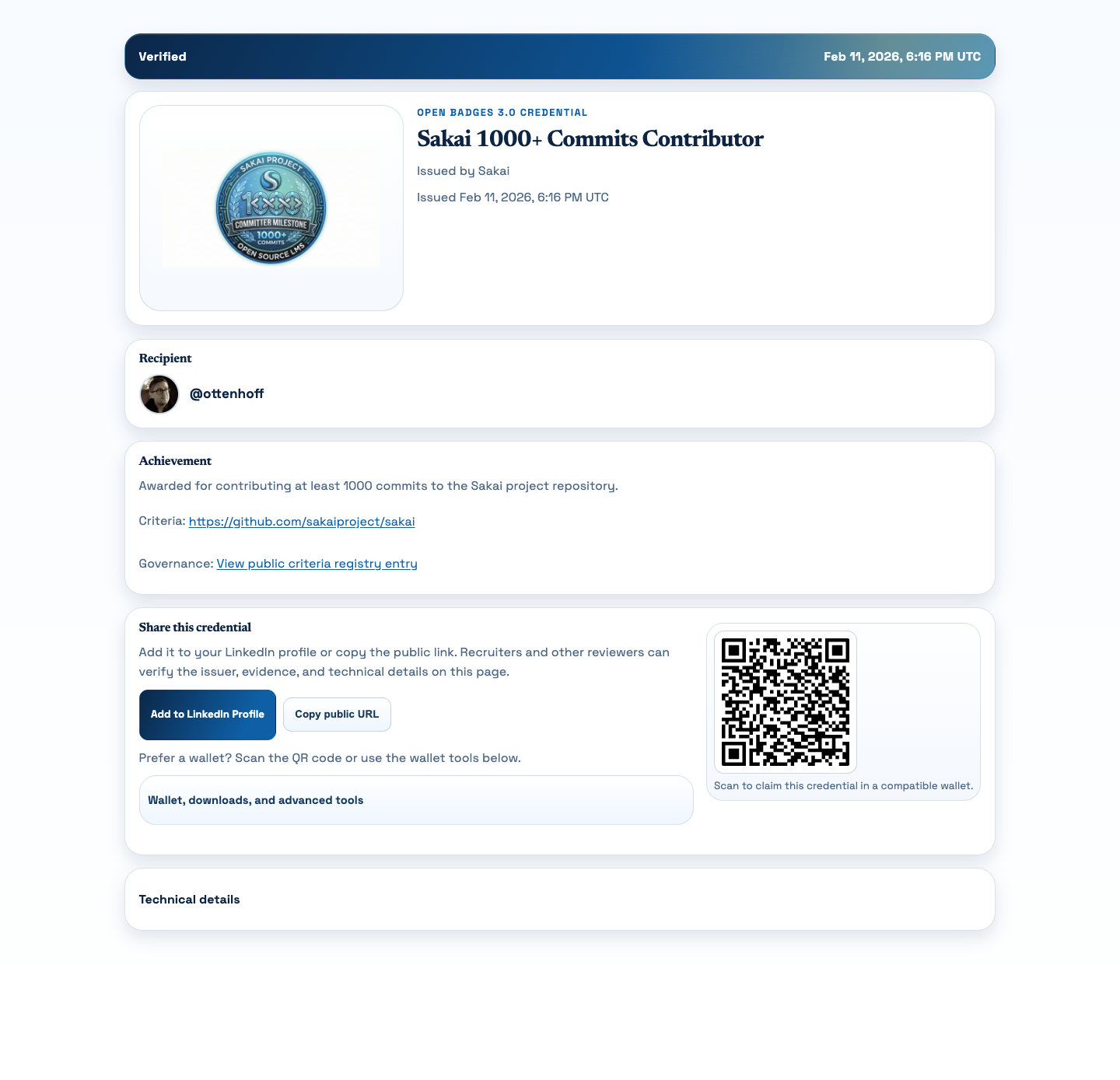
CredTrail keeps badge issuing, verification, and portability outside the LMS.
Read noteCampus patterns
Identity. Rosters. LTI. Accessibility. Security questionnaires. Hosted and on-prem deployment. We have been solving that mix for years.
Work with Longsight
Hosted or on-prem. Security questionnaires. LMS integration. Accessibility at scale. These are familiar conversations for Longsight because we have been in them for twenty years.